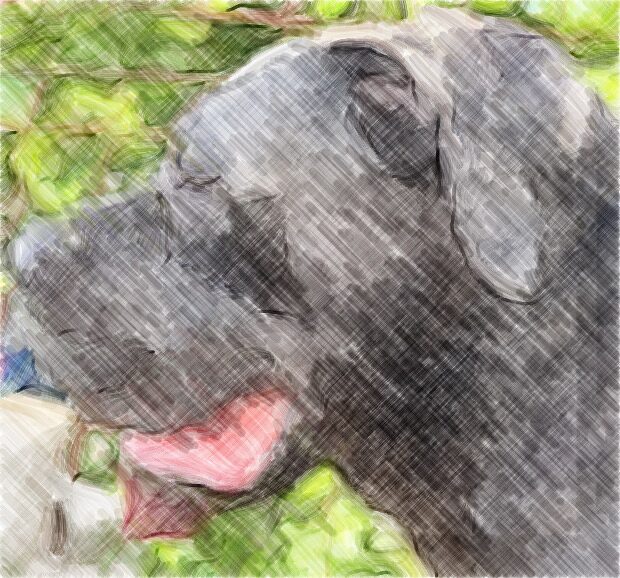
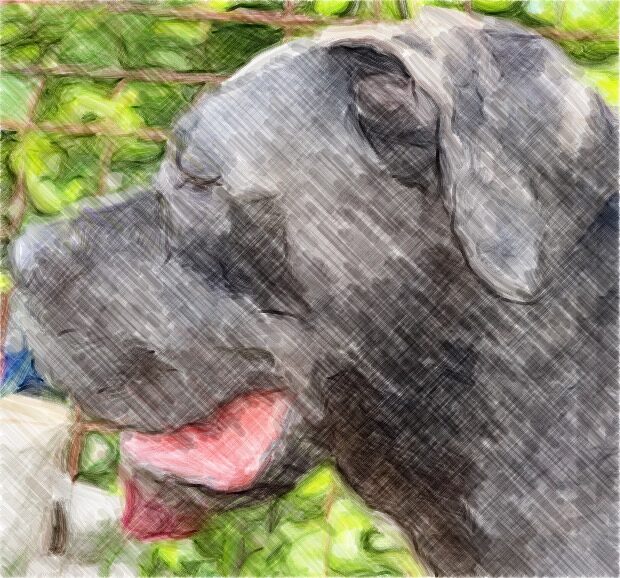
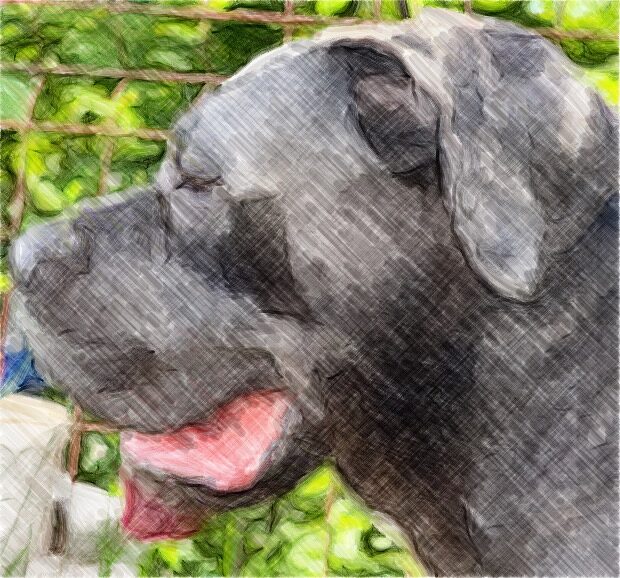
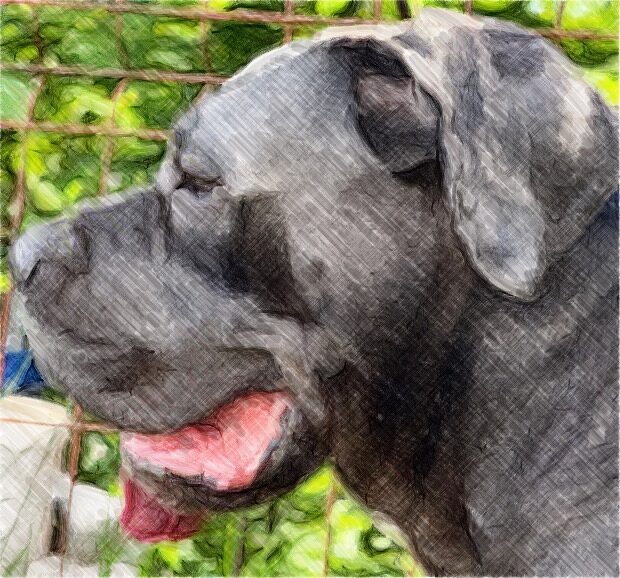
How to turn a photo into a painting on a Mac
Open Paint It for Me
In the toolbar, click Magic ▸ “Paint It for Me…”. It needs room for one more layer; if a free-tier canvas already has 3 layers, Paint My offers “Combine Layers” instead.
Add a photo
Click “Choose Photo…”, or drop a photo on the well that reads “Drop a photo here”.
Pick a style
Under “Style”, choose “Expressive” for loose, confident strokes, or “Hyperrealistic” to build up tone in passes, coarse to fine, until it matches your photo.
Choose a medium and detail
Under “Medium”, click “Pencil”, “Colored Pencil”, “Watercolor” or “Crayon”. Then set the “Detail” slider between “Loose” and “Fine”.
Click Paint and watch
Click “Paint”. A pill under the canvas shows “Painting” and a percentage; click “Stop” to keep what’s drawn so far.
Undo in one step
Click “Undo” in the toolbar or press ⌘Z to remove the whole painting in one step.
A photo to painting app for Mac with real brush strokes
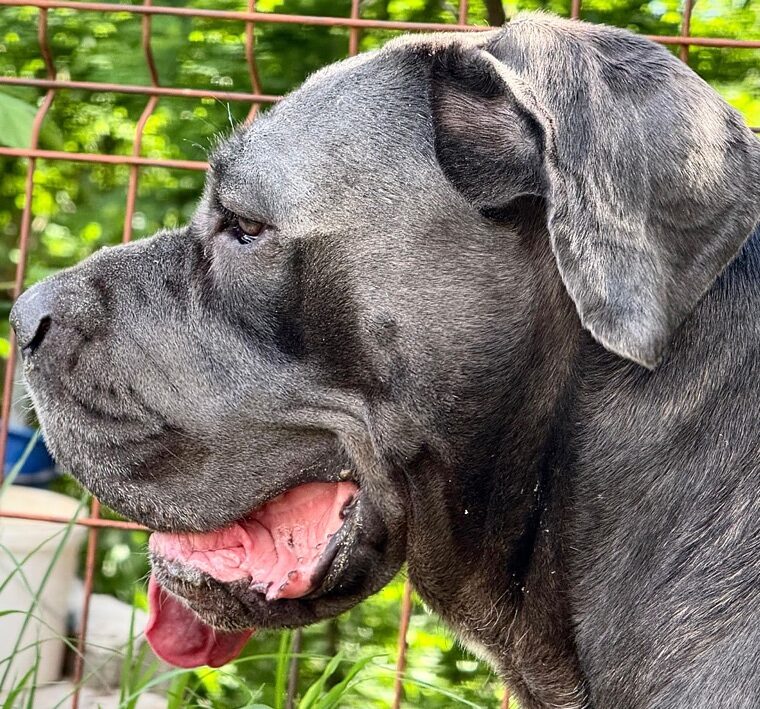
To turn a photo into a painting, Paint It for Me does not run a filter over the pixels. It draws your photo with strokes from Paint My’s own brush engine, on new layers above your work.
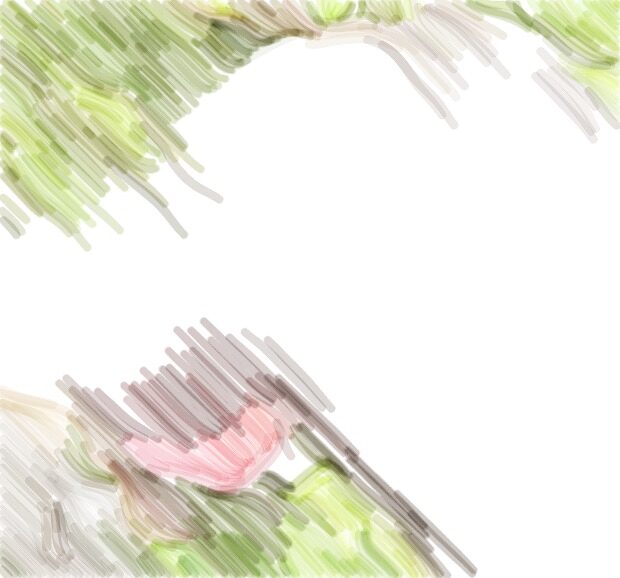
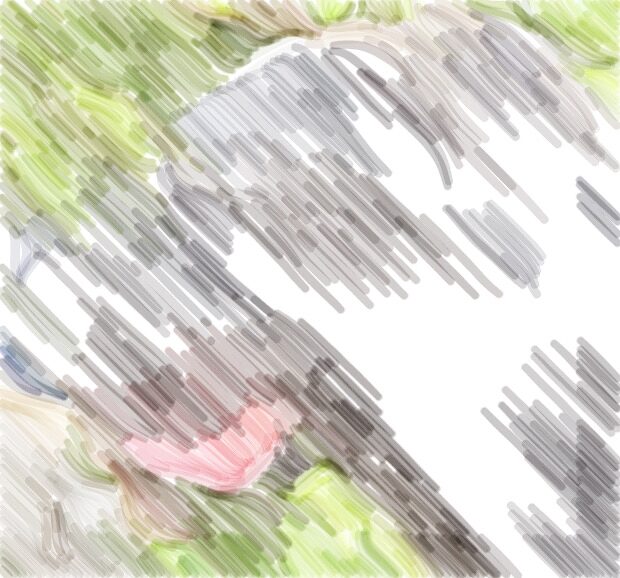
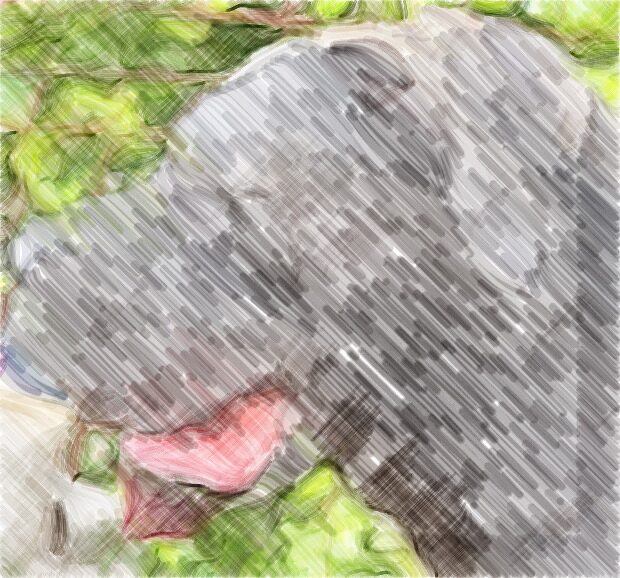
You see the painting build up stroke by stroke. When it ends, the pill reads “Painted — every stroke is yours to edit”. Paint over it, erase parts or hide a layer, as with your own work.
With Paint My Pro, every layer stays separate. Your first painting is free, and its layers are merged into one layer named “Painting”.
Expressive or Hyperrealistic: two ways to paint a photo
Both styles make a photo look like a painting. “Expressive” uses loose, confident strokes. Pencil sorts your photo by tone: fine ink for the darkest areas, charcoal and graphite for lighter ones, bare paper for the lightest. Colored Pencil, Watercolor and Crayon give each main color in your photo its own layer, with names like “Crayon · Red”.
“Hyperrealistic” works the way a realist painter does: coarse to fine, in passes. Before each pass it compares the drawing with your photo and adds strokes only where they are still needed. Layers are named the way an artist would name them, such as “Pencil · Shading · Midtones”.
In Hyperrealistic, the “Detail” slider changes which passes run. Set near “Fine”, it adds a “Fine Detail” pass. Set near “Loose”, it skips the finest pass, except with Crayon.
Photo to watercolor, colored pencil, pencil or crayon
Each medium card shows a short note, which changes with the style (Expressive / Hyperrealistic):
- Pencil: “Graphite and ink, by tone” / “Graphite layers, charcoal darks”.
- Colored Pencil: “Every color, finely hatched” / “Colors glazed layer on layer”.
- Watercolor: “Wet washes, soft edges” / “Light to dark, whites saved”.
- Crayon: “Bold, waxy color” in both styles.
Layers, blend modes and what to paint next
In Hyperrealistic, Pencil, Colored Pencil and Watercolor layers use the Multiply blend mode, so each pass darkens the one below the way pigment does on paper. Crayon layers use Normal. The drawing app with layers for Mac guide explains how blend modes work.
To keep painting by hand, see the watercolor app for Mac and sketching app for Mac guides. For clean line art instead of a painting, turn a photo into a sketch with Magic ▸ “Photo to Sketch…”.
A photo to painting converter that works offline
Paint It for Me runs on your Mac. Your photo is not uploaded, there is no account to create, and it works offline. The About pane in Settings says “No data collected”.
To take the photo with your iPhone, choose File ▸ “Import from iPhone or iPad”. The photo lands on a new layer, and a “Photo added” pill offers a “Paint It for Me” button. The same route lets you scan a drawing with your iPhone.
Transparent parts of a photo are read as plain paper. To paint a subject on its own, remove the background, save the cut-out as a PNG with File ▸ “Export Selected Layers…”, then choose that PNG in Paint It for Me.
Questions
Can I turn a photo into a watercolor without uploading it?
Yes. Choose the “Watercolor” medium in Paint It for Me. It paints on your Mac, and your photo is never uploaded.
Is it a filter or generative AI?
Neither. Paint It for Me is not generative AI and not a pixel filter. Every mark is a real stroke from Paint My’s own brush engine, placed on a layer you can edit.
Can I edit the painting afterward?
Yes. With Pro, every pass, tone and color layer stays separate. Your first painting, the free one, is merged into one layer named “Painting” that you can still paint over or erase.
Is Paint It for Me free?
Paint My is a free download, and you get one free painting, in either style and any medium. The free use is spent when you click “Paint”; after that, Paint It for Me is part of Paint My Pro.
Can it turn a photo into an oil painting?
No. Paint It for Me paints in pencil, colored pencil, watercolor or crayon; it has no oil medium.
How long does it take?
You watch it paint, with the progress shown as a percentage. Click “Stop” whenever you like to keep what’s drawn so far.